How to Use Birdie
Birdie makes it easy to show our support team exactly what you're experiencing by recording your screen and sharing the recording with us. This helps us understand issues faster and reduces the time it takes to find a solution.
When Should I Use Birdie?
You can use Birdie any time you need to add extra detail to your support request, but we recommend it when:
- You're experiencing a bug or technical issue
- Something isn't working as expected
- You need to show us the steps that led to a problem
- Screenshots don't fully explain the issue
Creating a Recording
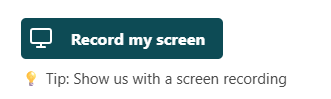
Select the 'Record my screen' button.
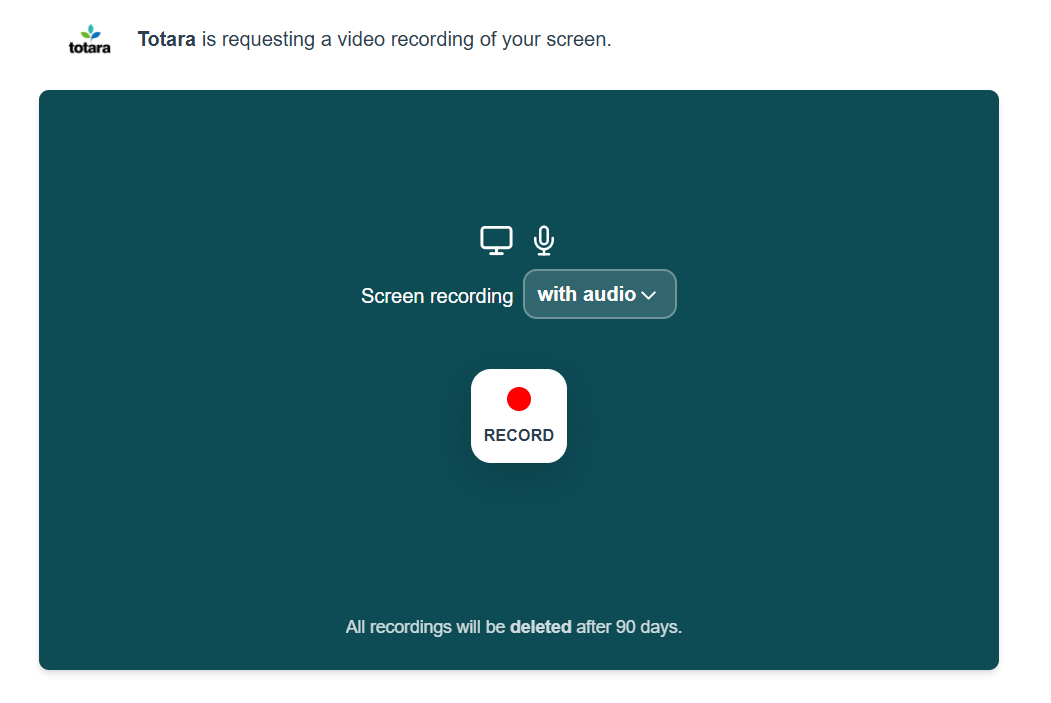
A pop-up box will appear, when you're ready select 'Record'.
Choose What to Share
You'll be prompted to select what you'd like to record. Choose the option that best demonstrates the issue you're experiencing.
- Your entire screen
- A specific application window
- A browser tab
You'll see a five second countdown before the recording begins.
While recording, try to:
- Show the full process from start to finish
- Clearly demonstrate the problem
- Explain what you expected to happen
- Highlight any error messages or unexpected behaviour
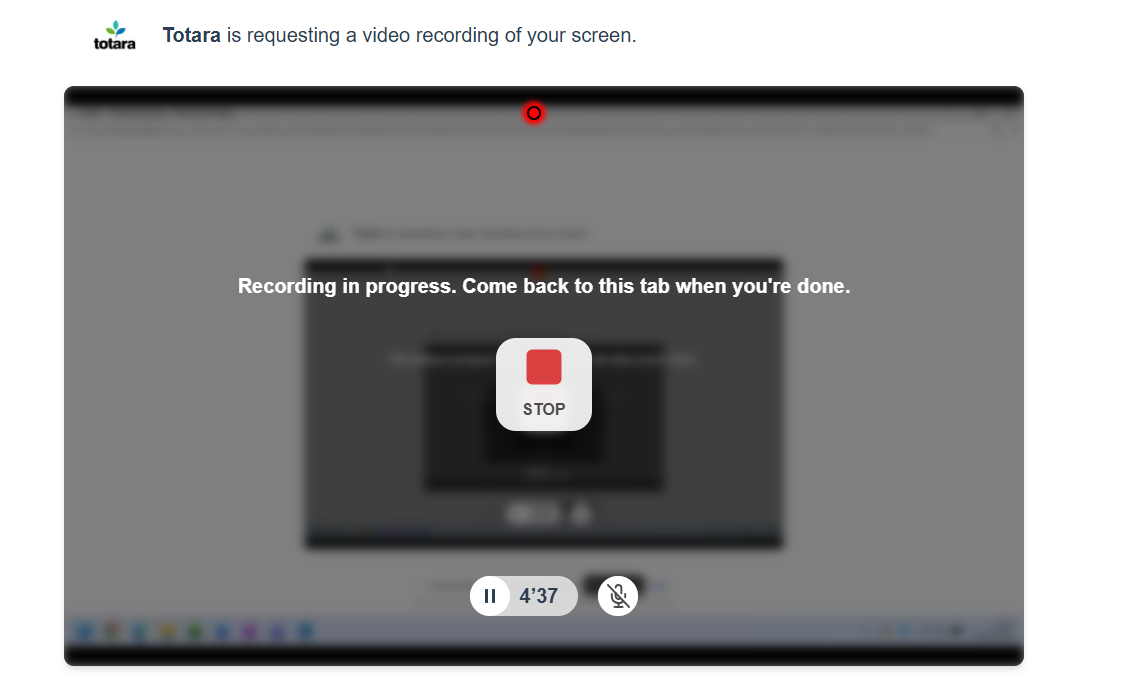
Once you've finished your screen recording, return to the pop-up and select 'stop':
If you're happy with your recording, select 'Finish'. If you need to record it again, select 'Retake'.
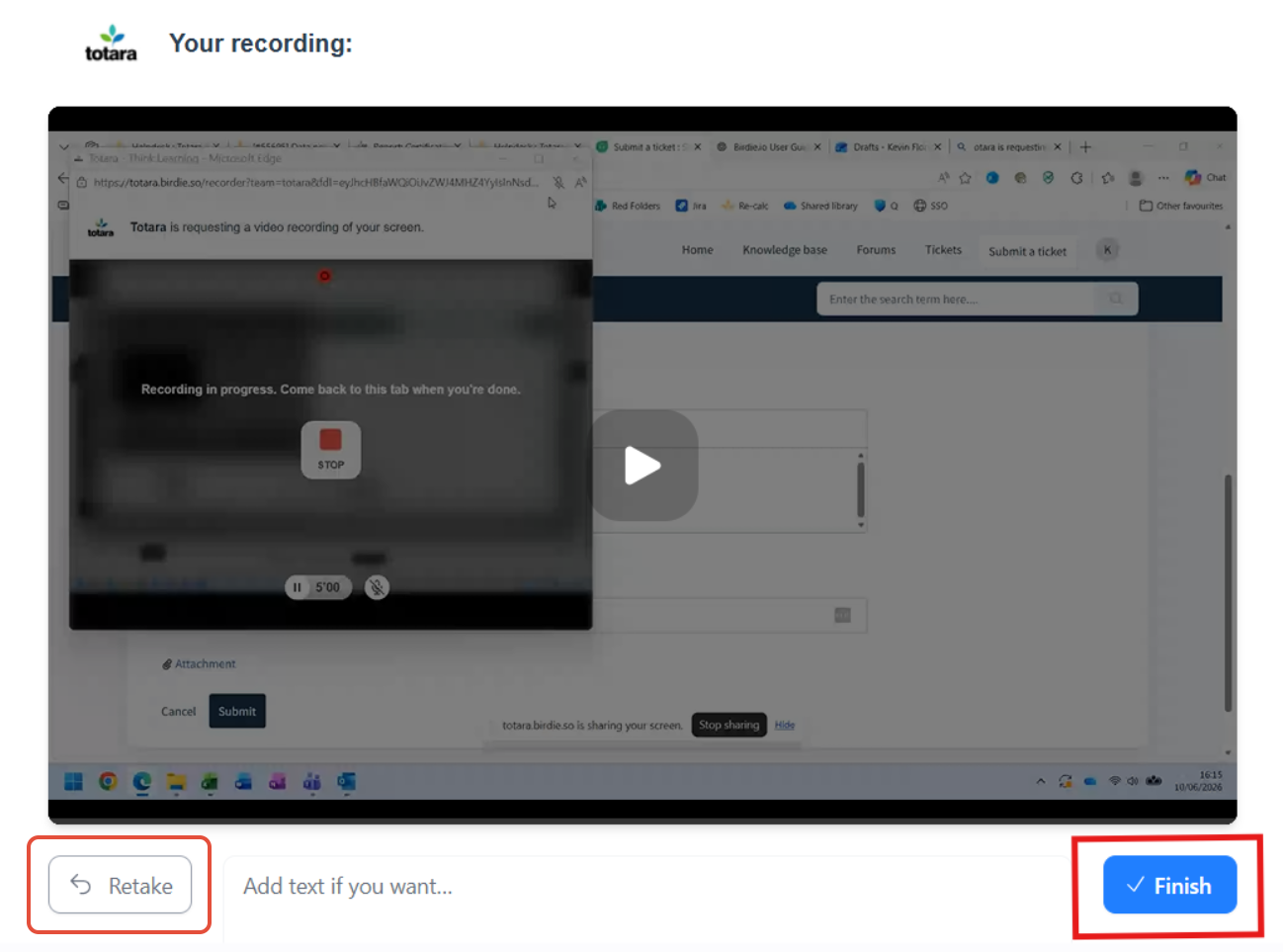
The finished recording will be added to your support ticket automatically.
Please do not remove the Birdie link from your ticket description, as this allows us to access your recording.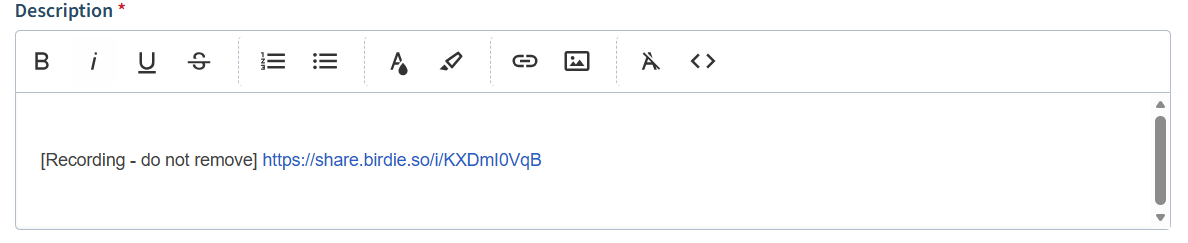
Tips for Recording an Issue
To help us investigate your issue as quickly as possible:
- Start recording before the problem occurs
- Demonstrate each step clearly
- Include any error messages you see
- Keep the recording focused on the issue
What Happens After I Submit My Recording?
Once submitted, our support team will review your recording along with any diagnostic information captured during the session.
This helps us:
- Understand the issue more quickly
- Reproduce the problem accurately
- Reduce the need for follow-up questions
- Resolve your issue faster
If we need any additional information, we'll contact you directly.
Frequently Asked Questions
Where is my data stored and for how long?
Recordings are processed under a Data Processing Agreement (DPA) and stored within Europe. Recordings are retained for 90 days and are then automatically deleted.
Can I request deletion before the automated 90 days?
Yes, recording can be deleted on request prior to the automated 90 days deletion.
Who has visibility of my data?
Access to recordings is restricted to authorised Totara personnel who require it to perform their role.
Can I redact personally identifiable information (PII)?
Screen recordings are captured as they appear and are not redacted, as doing so would reduce the effectiveness of the tool for diagnosing issues. Instead, data minimisation is achieved through a 90-day retention period and strict access controls. Customers should avoid capturing or submitting recordings that contain unnecessary personal or sensitive information wherever possible.
Does Birdie have access to my data?
Access to recordings is limited to Totara's authorised support staff; Birdie does not access recorded content as part of its service. Birdie acts as Totara's sub-processor under a Data Processing Agreement (DPA), and recordings are processed using appropriate technical and organisational security measures, including encryption of data in transit and at rest. Access is restricted to authorised personnel and only where necessary to operate, maintain or support the service.
Was this article helpful?
That’s Great!
Thank you for your feedback
Sorry! We couldn't be helpful
Thank you for your feedback
Feedback sent
We appreciate your effort and will try to fix the article